
LITE TOUCH ZOOM 130ED-QD - Compact camera NIKON - Free user manual and instructions
Find the device manual for free LITE TOUCH ZOOM 130ED-QD NIKON in PDF.


| Product Type | Compact 35mm autofocus zoom camera |
| Brand | NIKON |
| Model | LITE TOUCH ZOOM 130ED-QD |
| Lens | 38 mm f/5.3 – 130 mm f/10.5; 7 elements in 5 groups (including one ED element and one aspherical element) |
| Shutter | Programmed electronic type; 2 to 1/500 sec |
| Focus | Multi-zone passive autofocus; minimum distance 0.75 m (wide-angle) or 0.8 m (telephoto) |
| Viewfinder | Real-image zoom viewfinder, coverage >80%, diopter adjustment -3 to +1 m⁻¹, anti-fog |
| Built-in Flash | Four modes: automatic, off, on, portrait/night (slow sync); range 0.75–7.6 m (ISO 400, wide-angle) |
| Special Features | Red-eye reduction, self-timer 10 s, infrared remote control (QD only), date/time imprint (QD), panoramic mode (QD) |
| Compatible Film | DX-coded 35mm film; automatic sensitivity 25–3200 ISO (non-DX: 25 ISO) |
| Power Supply | 1 lithium 3V battery CR123A or DL123A |
| Battery Life | Approximately 10 rolls of 24 exposures (flash used for half) |
| Dimensions (approx.) | Not specified in the manual; refer to the product |
| Weight | Not specified in the manual; remote control only: approx. 10 g |
| Maintenance | Keep dry, away from salt and sand; clean the lens with a soft cloth or blower brush; do not touch the lens with fingers |
| Safety | Do not look at the sun through the viewfinder; do not use in the presence of flammable gas; keep batteries away from children; use only the recommended battery |
| Storage | In a dry, well-ventilated place; remove the battery if not used for a long time; use a desiccant |
| Supplied Accessories | Case CS-L29, remote control ML-L3 (QD model), strap |
| Note | Design and specifications are subject to change without notice |
Frequently Asked Questions - LITE TOUCH ZOOM 130ED-QD NIKON
User questions about LITE TOUCH ZOOM 130ED-QD NIKON
0 question about this device. Answer the ones you know or ask your own.
Ask a new question about this device
Download the instructions for your Compact camera in PDF format for free! Find your manual LITE TOUCH ZOOM 130ED-QD - NIKON and take your electronic device back in hand. On this page are published all the documents necessary for the use of your device. LITE TOUCH ZOOM 130ED-QD by NIKON.
USER MANUAL LITE TOUCH ZOOM 130ED-QD NIKON
(Caring for the Camera and Battery)
To prevent damage to your Nikon product or injury to yourself or to others, read the following safety precautions in their entirety before using this equipment. Keep these safety instructions where all those who use the product will read them.
The consequences that could result from failure to observe the precautions listed in this section are indicated by the following symbols:

This icon marks warnings, information that should be read before using your Nikon product to prevent possible injury.
WARNINGS
⚠ Do not look at the sun through the viewfinder
Viewing the sun or other strong light source through the viewfinder could cause permanent visual impairment.
⚠️ Turn off immediately in the event of malfunction
Should you notice smoke or an unusual smell coming from the equipment, remove the battery immediately, taking care to avoid burns. Continued operation could result in injury. After removing the battery, take the equipment to a Nikon-authorized service center for inspection.
⚠ Do not use in the presence of flammable gas
Do not use electronic equipment in the presence of flammable gas, as this could result in explosion or fire.
⚠️ Observe caution when using the camera strap
Caution should be exercised to prevent strangulation when wearing the camera strap around your neck. Never place the strap around the neck of an infant or child.
⚠ Do not disassemble
Touching the product's internal parts could result in injury. In the event of a malfunction, the product should be repaired only by a qualified technician. Should the product break open as the result of a fall or other accident, remove the battery and then take the product to a Nikon-authorized service center for inspection.
⚠️ Observe proper precautions when handling batteries
Batteries may leak or explode if improperly handled. Observe the following precautions when handling batteries for use in this product:
- Be sure the product is off before replacing the battery.
- Use only a 3 V CR123A or DL123A lithium battery.
- When inserting the battery, do not attempt to insert it upside down or backwards.
- Do not short or disassemble the battery.
- Do not expose the battery to flame or to excessive heat.
- Do not immerse in or expose to water.
- Do not transport or store with metal objects such as necklaces or hairpins.
- Immediately after use, or when the product is used on battery power for an extended period, the battery may become hot. Before removing the battery, turn the camera off and allow the battery to cool.
- Discontinue use immediately should you notice any changes in the battery, such as discoloration or deformation.
⚠️ Keep out of the reach of children
Particular care should be taken to prevent infants from putting the battery or other small parts into their mouths.
⚠️ Observe caution when operating the flash
Using the flash close to your subject's eyes could cause temporary visual impairment. Particular care should be observed if photographing infants, when the flash should be no less than one meter (39") from the subject.
Caring for the Camera and Battery
- Keep dry
This product is not waterproof, and may malfunction if immersed in water or exposed to high levels of humidity. Rusting of the internal mechanism can cause irreparable damage.
- Keep free of salt, sand, and dust
After using your camera at the beach or seaside, wipe off any sand or salt with a lightly dampened cloth and then dry your camera thoroughly.
- Do not touch the lens with your fingers
Use a blower brush to remove dirt and dust from the lens. To remove fingerprints or smudges from the lens' surface, use a soft, clean cotton cloth or lens tissue moistened with ethanol (alcohol) or lens cleaner.
- Handle the slide cover and all moving parts with care
Do not apply force to the lens or flash unit, or to the battery chamber cover or slide cover. These parts are especially susceptible to damage.
Do not drop
The product may malfunction if subjected to strong shocks or vibration.
- Keep away from strong magnetic fields
Do not use or store this device in the vicinity of equipment that generates strong electromagnetic radiation or magnetic fields. Strong static charges or the magnetic fields produced by equipment such as radio transmitters could affect the product's internal circuitry.
- Avoid sudden changes in temperature
Sudden changes in temperature, such as occur when entering or leaving a heated building on a cold day, can cause condensation inside the device. To prevent condensation, place the device in a carrying case or a plastic bag before exposing it to sudden changes in temperature.
Batteries
- When you turn the device on, check the battery-level displayed on the LCD panel to determine whether the battery needs to be replaced. The battery needs to be replaced the low battery power indicator appears on the LCD panel.
- Ready a spare battery when taking pictures on important occasions. Depending on your location, you may find it difficult to purchase replacement batteries on short notice.
- On cold days, the capacity of batteries tends to decrease. Use a fresh battery at low temperatures. Keep a spare battery in a warm place and exchange the two as necessary. Once warmed, a cold battery may recover some of its charge.
- Should the battery terminals become dirty, wipe them off with a clean, dry cloth before use.
Storage
- To prevent mold or mildew, store the camera in a dry, well-ventilated area. If you will not be using the product for a long period of time, remove the battery to prevent leakage and store the camera in a plastic bag containing a desiccant. Do not, however, store the camera case in a plastic bag, as this may cause the material to deteriorate. Note that desiccant gradually loses its capacity to absorb moisture and should be replaced at regular intervals.
- Do not store the camera with naphtha or camphor moth balls, close to equipment that produces strong magnetic fields, or in areas subject to extremes of temperature, for example near a space heater or in a closed vehicle on a hot day.
- To prevent mold or mildew, take the camera out of storage at least once a month. Turn the camera on and release the shutter a few times before putting the camera away again.
- Store the battery in a cool, dry place.
Thank you for purchasing the Nikon Lite Touch Zoom 130ED / Lite Touch Zoom 130ED QUARTZ DATE (QD) camera.
Be sure to read this manual thoroughly before use, and keep it handy until you feel confident using the camera.
Some of the illustrations show the model with the date function (Lite Touch Zoom 130ED QD).
Accessory
(The following item is supplied with this camera.)
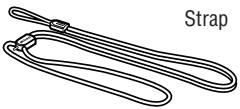
natural_image
Line drawing of a strap with two clips and a label 'Strap' (no other text or symbols)Optional accessories
- Camera case CS-L29
(Remote control unit can be stored in the pocket inside.) - Remote control unit ML-L3 (p. 39)
(Lite Touch Zoom 130ED QD only)
Symbols used in this manual

: Indicates items to be checked, such as requirements and restrictions.

: Indicates notes and cautions you are requested to follow.

: Indicates supplementary descriptions.

: Indicates pages for reference.

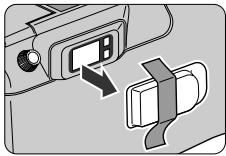
Before using the camera for the first time
natural_image
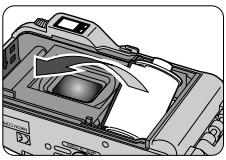
Diagram showing a car seatbelt switch and its connector (no text or symbols present)To protect the viewfinder eyepiece, a plastic cover is attached to the viewfinder eyepiece. Please remove it before using the camera.
Table of Contents
| For your safety----2Caring for the Camera and Battery----4To take a picture right away (Quick operation guide)---8Camera parts----10Body----10LCD panel----12Viewfinder----13 | |
| Preparations | Installing a battery----14Turning the camera on----15Checking the battery power----15Loading the film----16Imprinting the date/time on pictures(Lite Touch Zoom 130ED QD only)----18Adjusting diopter----19 |
| Basic Operations | Holding the camera properly----20Operating the shutter release button----20Selecting Regular or Panorama mode(Lite Touch Zoom 130ED QD only)----21Shooting----22Zooming----24Rewinding the film----25Removing the film----25 |
| Advanced Operations | When the main subject is not in the center ofthe picture----26Difficult-to-focus subjects----27Flash photography----28Selecting flash mode----28To use the flash automatically----30To cancel flash operation----31To use the flash always----32To photograph a person in a night view----33® button----34To reduce the "Red-eye" effect----35Close-up photography----36Shooting a distant view or landscape througha window----37Using the self-timer----38Using the remote control (optional)----39(Lite Touch Zoom 130ED QD only)Replacing the remote control battery----40 |
| Additional Information | Correcting the date and time(Lite Touch Zoom 130ED QD only)----41Troubleshooting----42Specifications----44 |
To take a picture right away
(Quick operation guide)
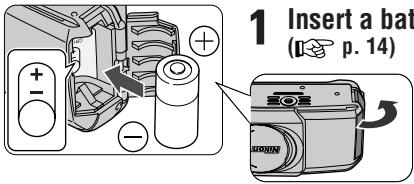
1 Insert a battery.
(☐ p. 14)
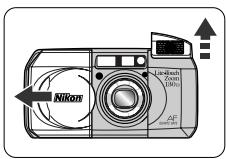
2 Open the slide cover to turn the camera on.
(☐ p. 15)
- Make sure that the sufficient Battery Power indicator (☐) appears on the LCD panel. (☐ p. 15)
natural_image
Technical illustration of a mechanical device with no visible text or symbols3 Load the film. (p. 16)
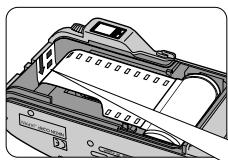
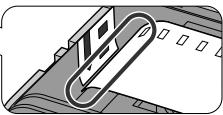
- Pull the film leader across to the red index mark inside the film compartment.
natural_image
Pure mechanical component diagram without any text, numbers, or symbolsRegular mode
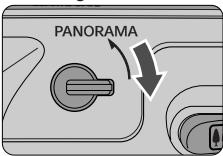
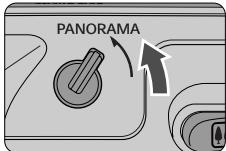
4 Select Regular or Panorama mode (Lite Touch Zoom 130ED QD only). (p. 21)
or
Panorama mode
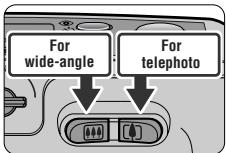
5 Press the Zoom buttons and compose your picture. (p. 24)
natural_image
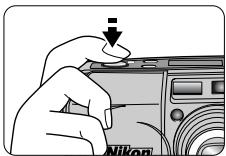
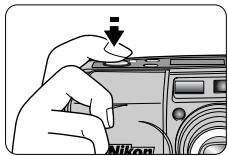
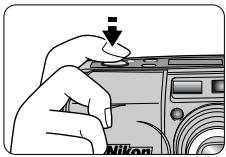
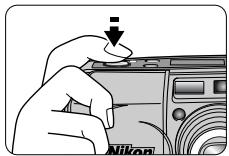
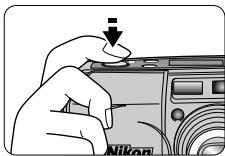
Illustration of a hand pressing down on a Nikon camera module (no text or symbols visible)6 Press the shutter release button halfway. (p. 20)
- When you press the button halfway, focus and exposure are automatically achieved, and the green LED lights up.
natural_image
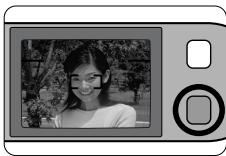
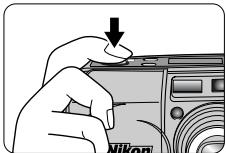
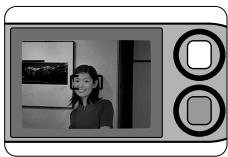
Black-and-white photo of a smiling person holding a camera, displayed on a digital camera (no text or symbols visible)7 Check the green LED is on, then press the shutter release button all the way to release the shutter.
(Ⅲ p. 22)
natural_image
Hand pressing down on a laptop screen with a download arrow (no text or symbols visible)The film starts to rewind automatically, when film reaches the end of the roll. (p. 25)
- Remove the film cartridge. (p. 25)

Take trial shots
Take trial shots before shooting at important occasions like weddings or graduations.
- Nikon will not be held liable for any damages resulting from the use of this product.
Camera parts
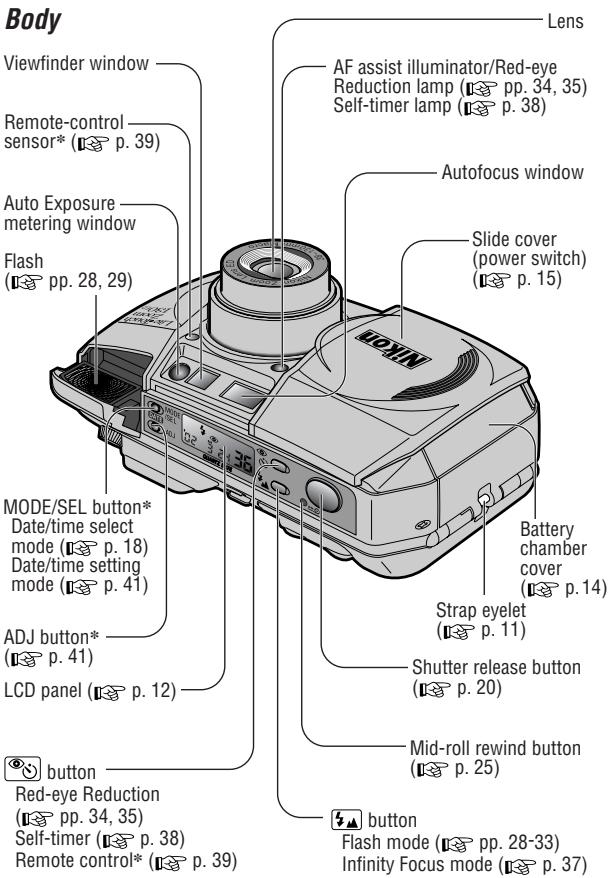
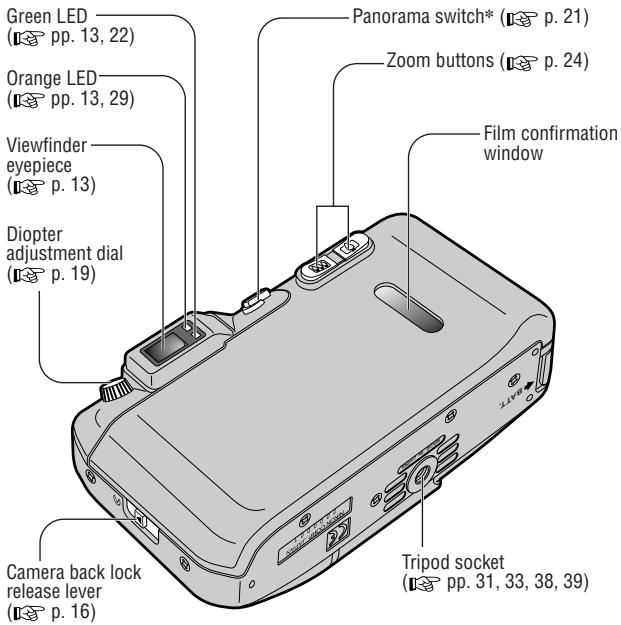
* Lite Touch Zoom 130ED QD only
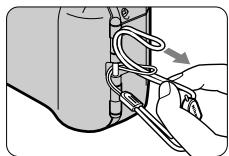
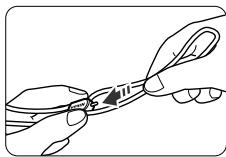
Attaching the strap
natural_image
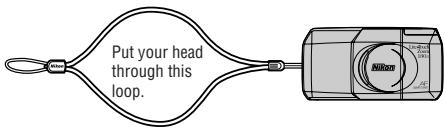
Illustration of a hand using scissors to adjust cable or wire inside a device (no text or symbols visible)Attach the strap as shown in the illustration.
natural_image
Illustration of a hand holding a tool with a pen, no text or symbols presentAdjust the length using the lug on the strap.
Camera parts (continued)
LCD panel
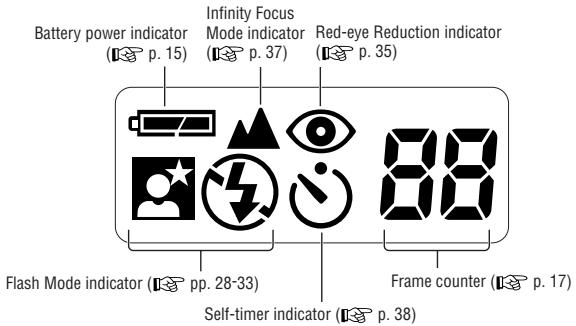
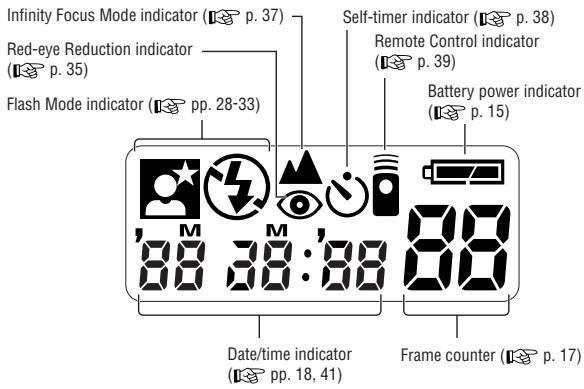
The illustrations are fully labeled for your reference.
Viewfinder
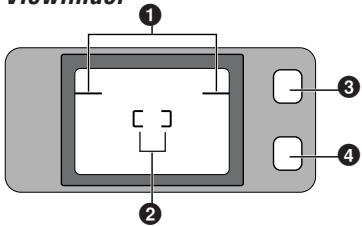
Regular viewfinder
Panorama viewfinder (Lite Touch Zoom 130ED QD only)
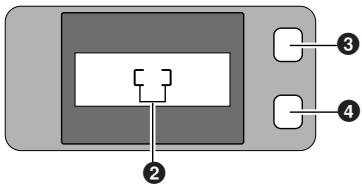
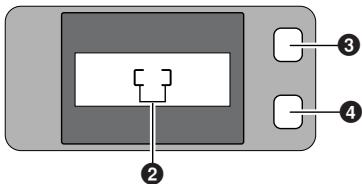
① Parallax compensation marks (p. 36)
Use for close-up shooting distance less than 1m.
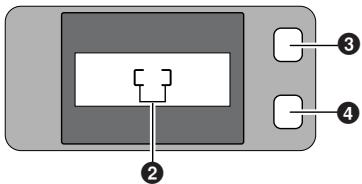
②Autofocus frame marks (p. 22)
Center the autofocus frame marks on the subject.
③ Orange LED (p. 29)
With the shutter release button pressed halfway, the orange LED lights up when the flash is ready to fire, and it slowly blinks when the flash is charging. (If the shutter release button is kept pressed and the flash is fully charged, the LED remains to blink.)
If you press down on the popped-up flash unit while the shutter release button is pressed halfway, the LED blinks rapidly as a warning.
④ Green LED (p. 22)
Lights when focus is achieved. It quickly blinks if correct focus cannot be achieved.
In close-up photography, the LED slowly blinks as a warning if the subject is closer than approx. 0.75m for wide-angle photography, or approx. 0.8m for telephoto photography.
Installing a battery

Battery type
Use one CR123A or DL123A type 3V lithium battery in this camera.
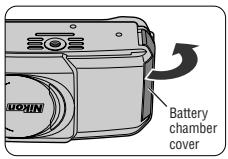
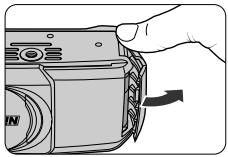
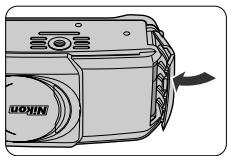
1 Open the battery chamber cover.
- While releasing the lock as indicated by the arrow in the left illustration, open the battery chamber cover.
natural_image
Hand holding a camera module with an arrow indicating rotation (no text or symbols visible)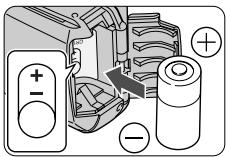
2 Install a new battery.
- Insert the battery with the⊕and⊖ends positioned as marked inside the battery chamber.
natural_image
Line drawing of a Nikon camera module with an arrow indicating rotation (no text or symbols present)3 Close the battery chamber cover until it clicks.

The built-in clock is reset automatically when the battery is removed. Remember to set the time and date. (Lite Touch Zoom 130ED QD only) (p. 41)
Turning the camera on
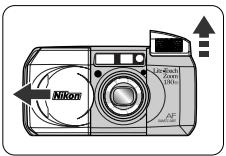
Open the slide cover until it clicks.
- Once you open the slide cover in the direction of the arrow, the camera is turned on, the built-in flash automatically pops up, and the lens extends out.
- The camera is set in Auto flash mode. (Ⅱ p. 30)

When closing the cover, first slide it slightly in to start lens retraction. When the lens is completely retracted, slowly close the cover.
Checking the battery power
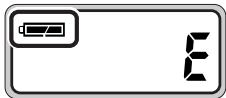
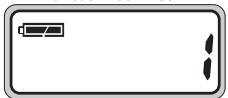
Make sure that the sufficient Battery Power indicator (☐) is showing on the LCD panel.
Lite Touch Zoom 130ED
Lite Touch Zoom 130ED QD
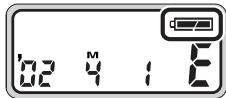
| showing | The battery power is sufficient. |
| blinking or showing | The battery is nearing exhaustion.Have a fresh one ready. |
| no indicators | Replace the battery with a new one. |

Always check the battery condition before shooting.

We recommend that you take spare batteries with you, especially when travelling.
Loading the film

Recommended film
Use DX-coded 35mm film with this camera. It is recommended to use DX-coded ISO 400 film, which provides good results when using the flash, and helps avoid blurred images, should camera shake occur.
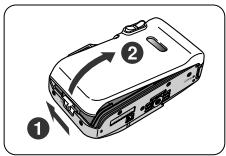
1 Close the slide cover, then open the camera back.
- Slide the camera back lock release lever (①), and open the camera back (②).
- When loading/unloading film, be sure not to open the camera back cover into direct sunlight.
natural_image
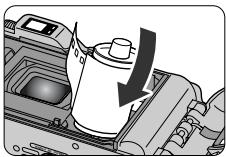
Mechanical assembly diagram showing a piston and crankshaft mechanism (no text or labels)2 Insert a film cartridge.
natural_image
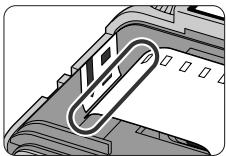
Close-up of a mechanical component with a paperclip inserted, showing internal structure (no text or symbols visible)3 Pull the film leader across to the red index mark inside the film compartment.
- Make sure to align the film leader to the red index mark; if the film leader is not properly aligned to the index mark (short of or beyond the mark), film may not be loaded properly.

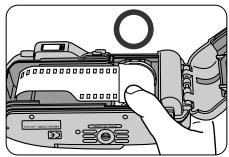
Hold the film cartridge and ensure film is properly positioned with no slack.
natural_image
Illustration of a hand inserting a camera into a device (no text or symbols visible)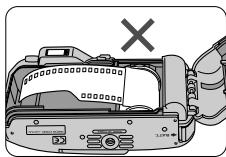
natural_image
Diagram of a device with a cross mark and internal components, no readable text or symbols presentLite Touch Zoom 130ED
natural_image
Simple line drawing of a battery with two buttons and a battery symbol (no text or labels)Lite Touch Zoom 130ED QD
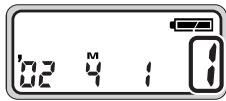
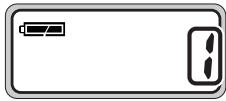
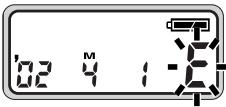
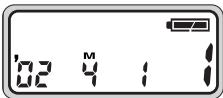
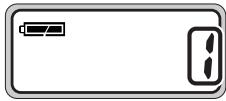
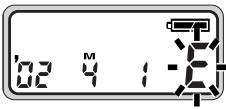
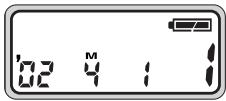
4 Close the camera back, and check that “!” appears on the film counter.
Once the camera back is closed, the film automatically advances to the first frame. Until film loading is complete, “- -” blinks on the LCD panel.
- When the film has been properly set, “‘” appears on the LCD panel.

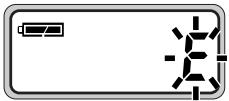
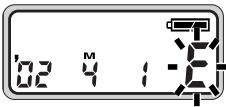
If “E” blinks on the LCD panel, film is not properly loaded. Open the camera back again and reload film.
Tips on DX-coded 35mm film
Number of frames
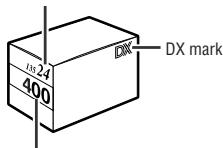
ISO (film speed)
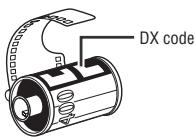
Film cartridge
- With DX-coded film, film speed is set automatically.
Film speeds valid for automatic setting are ISO 25, 50, 100, 200, 400, 800, 1600, and 3200. - With a non-DX-coded film, the film speed is automatically set to ISO 25.
Imprinting the date/time on pictures
(Lite Touch Zoom 130ED QD only)
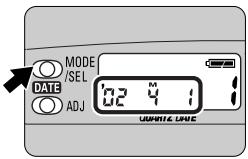
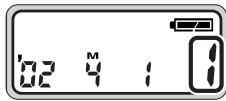
Select the date/time indicator by pressing the MODE/SEL button.
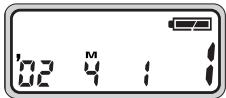
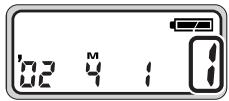
- The year is indicated by the last two digits, and the time is displayed by 24-hour clock. The example in the illustration shows Apr. 1, 2002.
- The month is indicated by “M” in the display screen. This letter is not imprinted on any pictures you take.
Each time you press the MODE/SEL button, the indicator changes as follows:
Year/Month/Day Month/Day/Year Day/Month/Year

- Select “ - - -” (No imprint) to cancel data imprint.
Imprint position of date/time
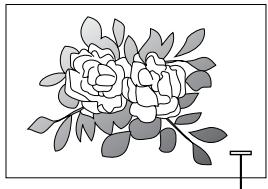
natural_image
Illustration of a flowering rose with leaves and stem, no text or symbols presentImprint position in Regular shooting
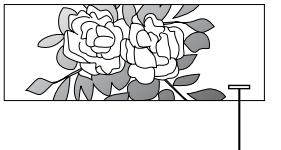
natural_image
Illustration of a flowering rose with leaves and a small stand (no text or symbols)Imprint position in Panorama shooting
- The imprint positions on picture are shown in the illustration.
It may be difficult to read against bright colors such as white or reddish hues.
If you take a picture exceeding the number of frames on the film, the date/time may not be imprinted correctly on the picture.
Adjusting diopter
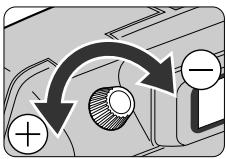
flowchart
graph TD
    A["+"] --> B["Circle"]
    B --> C["-"]
If the image in the viewfinder is unclear, turn and adjust the diopter adjustment dial to get clear image.
Caution:
As you look into the viewfinder and operate the diopter adjustment dial, make sure not to injure your eye with your finger or fingernail during adjustment.
About the Antifog Viewfinder
A specially treated plastic surface prevents the eyepiece from fogging when shooting in cold or warm, humid environments.

If the antifog viewfinder eyepiece is smeared, gently wipe it with a dry, soft cloth (e.g. a lens cloth). Avoid wiping with force; otherwise, the eyepiece may be damaged.
Holding the camera properly
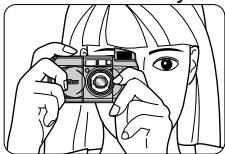
When holding the camera horizontally
natural_image
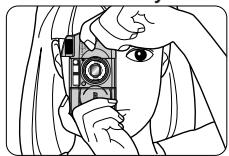
Line drawing of a person holding a camera, eyes visible (no text or symbols)When holding the camera vertically
natural_image
Line drawing of a person holding a camera (no text or symbols)- Prop your elbows against your body and hold the camera with both hands.
- When holding the camera vertically, make sure that the flash is on top as shown.

Do not block the lens, autofocus window, or flash with your fingers or hair, or the strap.

Be careful not to press down on the flash unit when it is in the popped-up position.
Operating the shutter release button
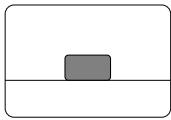
Before pressing
natural_image
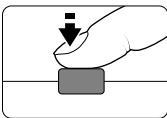
Simple geometric diagram with a gray rectangle centered on a horizontal line (no text or symbols)Press halfway
natural_image
Hand pressing a button with a downward arrow (no text or symbols)Press all the way down
natural_image
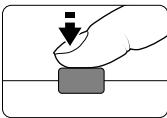
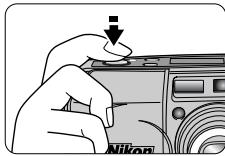
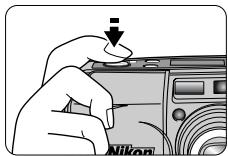
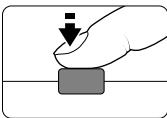
Hand pressing a button with a black arrow indicating downward motion (no text or symbols)1 Press the shutter release button halfway to focus.
- When you press the button halfway, focus and exposure are automatically achieved, and the green LED lights up.
- The focus is locked (Focus lock 📋 p. 26) while the shutter release button is depressed halfway.
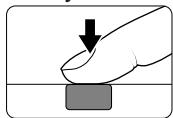
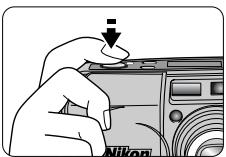
2 Press the shutter release button all the way down to take a picture.

Pressing the shutter release button abruptly can result in picture blur. Make sure to press the shutter release button slowly.
Selecting Regular or Panorama mode
(Lite Touch Zoom 130ED QD only)

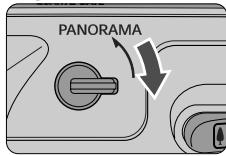
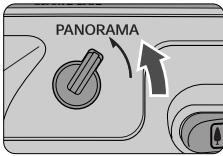
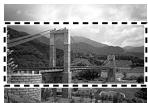
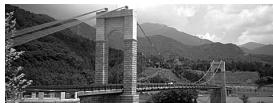
What's Panorama mode?
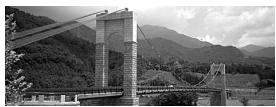
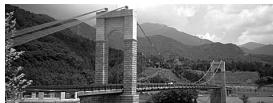
In panorama mode, a portion of the top and bottom part of the frame is cut exposing an area of approx. 13 × 36 mm and is usually printed in approx. 89 × 254 mm size.
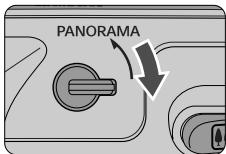
Select Regular or Panorama mode with the Panorama switch.
Regular mode
Panorama mode
natural_image
Black-and-white exterior view of a suspension bridge over a river with mountains in the background (no visible text or symbols)Regular mode

natural_image
Black-and-white exterior view of a suspension bridge over water with mountainous background (no visible text or symbols)Panorama mode
- The date/time can also be imprinted in Panorama mode.
(■ p. 18)

When compared with regular-format pictures, extra time and cost may be required for developing/printing panorama pictures.
Caution:
To prevent possible injury to your eye, hold the camera away from your face when you operate the Panorama switch.
Shooting
This camera employs a highly accurate multi-area passive autofocus system, which enables easy focusing and sharp shooting of a distant view or a subject through a window.
natural_image
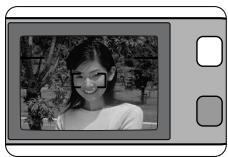
Black-and-white photo of a smiling girl wearing glasses, outdoors with trees and foliage (no text or symbols visible)1 Center the autofocus frame marks “[ ]” on the main subject.

If the main subject is outside the autofocus frame marks:
Use focus lock. (p. 26)
natural_image
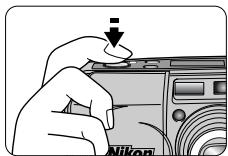
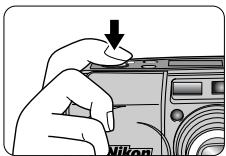
Hand holding a Nikon device with a downward arrow indicating action (no text or symbols on the device itself)2 Press the shutter release button halfway to focus.

Lighting/blinking of the green LED
When correct focus has been achieved, the green LED lights up.
The green LED blinks either slowly or quickly when the subject is out of focus.
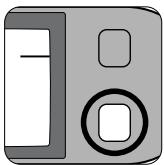
natural_image
Illustration of a gray floppy disk with a black circular button (no text or symbols)●Slow blinking indicates the subject is too close.
For correct focus to be achieved, keep the camera away from the subject for more than the distance shown below:
at 38mm: approx. 0.75m.
at 130mm: approx. 0.8m.
● Quick blinking indicates that the subject is difficult to focus.
Use the focus lock. (p. 26)
natural_image
Hand holding a Nikon device with a downward arrow indicating action (no text or symbols on device)3 Confirm that the green LED lights up and slowly press the shutter release button all the way down.
- If the subject is dark or backlit in Auto Flash mode, the flash fires automatically.
Pressing the shutter release button abruptly can result in picture blur. When not in use, close the slide cover to protect the lens, finder, etc. and to save battery power.
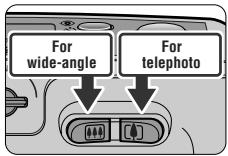
Press the Zoom button to compose the picture.
- Press the zoom button for telephoto (130mm) photography or the zoom button for wide-angle (38mm) photography.
- Remove your finger from the zoom button when the desired image size has been achieved.
Example of a wide-angle photograph
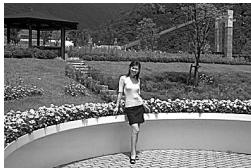
natural_image
Black-and-white photo of a woman standing on a curved bench in a park with flowerbeds and a pavilion in the background (no visible text or symbols)Example of a telephoto photograph

natural_image
Black-and-white photo of a woman standing outdoors with flowers in the foreground (no visible text or symbols)When the camera is not operated for more than 3 minutes, the lens automatically retracts to the 🏠 (wide-angle) position.
Rewinding the film
Film starts to rewind automatically when film reaches the end of the roll.
- While the film is rewinding, the number on the frame counter decreases one by one. Film is completely rewound when the frame counter shows blinking “ ±b ” for approx. 20 seconds in the LCD panel, then “ ±b ” appears without blinking.
- If rewinding stops midway through the roll because of a dead battery, it resumes automatically as soon as the battery is replaced.

Do not open the camera back until “E” starts blinking.
To rewind the film in mid-roll.
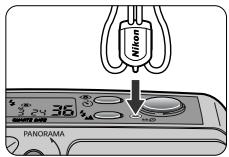
Press the mid-roll rewind (☐) button using the stud on the strap lug or a ball-point pen.
- Once rewinding starts, there is no need to keep the button pressed.
Removing the film
Lite Touch Zoom 130ED
natural_image
Pure electrical circuit lines without any symbolsLite Touch Zoom 130ED QD
1 Confirm that film is completely rewound.
- Film is completely rewound when “ ±b ” is blinking (“ ±b ” appears without blinking) in the LCD panel.
natural_image
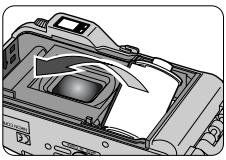
Diagram of a device interior showing a tray with a lid and a shield, no text or symbols present2 Open the camera back and remove the film.
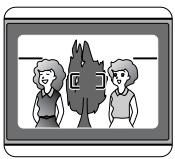
When the main subject is not in the center of the picture (Focus lock photography)
Focus lock is useful in autofocus shooting when you want to capture a subject that's framed outside of the autofocus frame marks, and in situations where subjects may be difficult to focus (p. 27).
natural_image
Illustration of two people standing beside a tree with a leaf symbol (no text or labels)- Depending on the effect you want to achieve, your subject may not be at the center of the final composition in the left example. If your subject is not at the center of the frame marks when the shutter release button is pressed halfway, the camera will focus on the background and the main subject may not be in focus. Focus lock allows you to adjust the composition after focusing on your subject.
natural_image
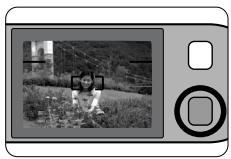
Black-and-white photo of a child sitting outdoors next to a camera lens (no text or symbols visible)1 Center the autofocus frame marks on the main subject, then press the shutter release button halfway.
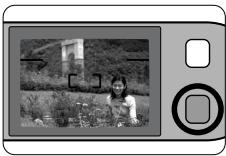
- The green LED lights up when the subject is in focus, and the focus is locked as long as the shutter release button is pressed halfway.

Do not change the camera-to-subject distance
While the green LED lights up, the focus is locked. Do not change the camera-to-subject distance.
natural_image
Black-and-white photo of a person outdoors with flowers, next to a camera lens (no text or symbols visible)2 Compose the picture, while pressing the shutter release button halfway and press the shutter release button all the way down.
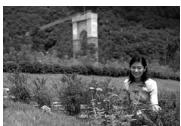
Example
natural_image
Black-and-white photo of a person tending to plants in a field with a distant building (no visible text or symbols)Difficult-to-focus subjects
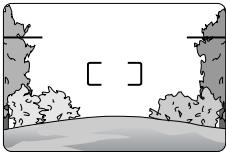
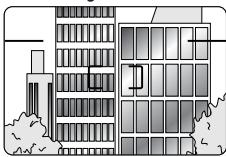
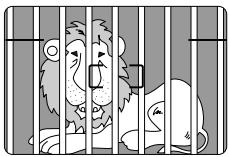
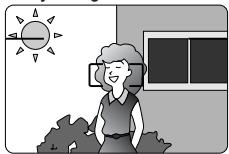
The following subjects may be difficult to focus.
Use the focus lock (p. 26) to focus on another subject equidistant from the camera, then compose the picture to shoot.
Subjects of low contrast such as blue sky, or shiny subjects such as a shiny car body or water surface.
natural_image
Simple line drawing of a landscape with trees and cliffs, no text or symbols presentSubjects with continuous and repeated patterns such as buildings.
natural_image
Architectural line drawing of a multi-story building with windows and trees (no text or symbols)Scenes with subjects at different distances within the autofocus frame marks.
natural_image
Illustration of a cat and a lion in a cage-like structure (no text or symbols)Strongly back lit subjects or those having a bright shiny background.
natural_image
Illustration of a smiling woman sitting outdoors with a sun and window in the background (no text or symbols)Flash photography
Selecting flash mode.
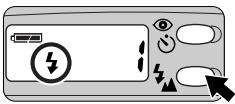
Lite Touch Zoom 130ED
natural_image
Illustration of a remote control panel with battery, lightning bolt, eye icons, and navigation arrows (no text or symbols)Select flash mode by pressing the ⏻ button.
Lite Touch Zoom 130ED QD
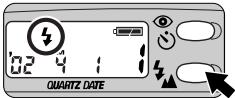
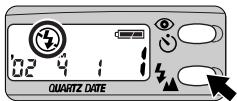
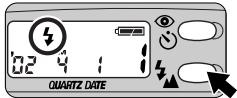
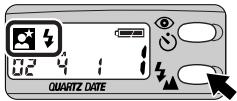
You can select any of five flash modes by pressing the ↓▲ button.

flowchart
graph LR
    A["No indicator"] --> B["⚡"]
    B --> C["⚡"]
    C --> D["⚡"]
    D --> E["💡"]
| Indicator | Explanation |
| No indicator | Auto Flash (p. 30)The flash automatically fires when lighting is poor, or the subject is backlit. |
 | Infinity Focus (p. 37)For shooting a distant scene or landscape more sharply. |
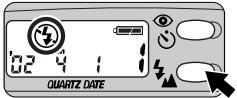
| SWED | Flash Cancel (p. 31)Flash will not fire even when lighting is poor. |
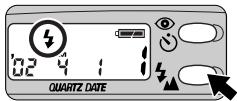
| SWE | Anytime Flash (p. 32)Flash fires whenever photo is taken. |
| IOTATO | Night Portrait (Slow Sync Flash)(p. 33)Use to capture both subject and background at night or under dim light. Flash fires whenever photo is taken. |

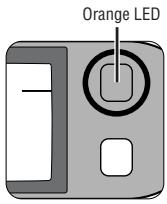
Lighting/blinking of the orange LED when the shutter release button is pressed halfway
● The orange LED lights up:
Flash charging is completed. The flash is ready to fire.
● The orange LED blinks slowly:
The flash is charging. Take your finger off the shutter release button once, then press the button halfway again. If the orange LED lights up, the shutter can be released.
● The orange LED blinks quickly:
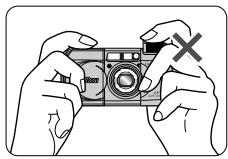
The popped-up flash unit is being pressed down. The flash will not fire when you release the shutter, even if in Flash mode.
Do NOT touch the flash unit.
natural_image
Illustration of hands holding a camera with a 'X' mark, no text or symbols present
Flash shooting range
The reference distance ranges between the camera and subject are shown below.
With ISO 100 film speed
(wide-angle) setting: approx. 0.75 to 3.8 m
(telephoto) setting: approx. 0.8 to 1.8 m
With ISO 400 film speed
(wide-angle) setting: approx. 0.75 to 7.6 m
(telephoto) setting: approx. 0.8 to 3.6 m
To use the flash automatically
(Auto Flash mode)
Use this mode for automatic flash operation when lighting is poor or the subject is backlit.

Automatic flash firing for a backlit scene
When the subject is backlit, the flash automatically fires while simultaneously compensating exposure for the main subject and the background.
Lite Touch Zoom 130ED
natural_image
Simple diagram of a battery with two terminals and a battery symbol (no text or labels)Lite Touch Zoom 130ED QD
1 Open the slide cover.
- When you open the slide cover, the power is turned on and the built-in flash automatically pops up.
natural_image
Illustration of a hand pressing down on a Nikon camera module (no text or symbols visible)2 Compose the picture, then press the shutter release button halfway.
3 Check that the orange and green LEDs light up, then shoot.
natural_image
Black-and-white photo of a person in front of a wall-mounted device with a lock icon on the right side (no visible text or symbols)Example

natural_image
Black-and-white photo of a smiling woman standing in front of a wall with a framed landscape image (no visible text or symbols)
If there is enough light, “💡” appears on the LCD panel, and the flash does not fire.
To cancel flash operation
(Flash Cancel mode)
Use this mode in places, where use of a flash is prohibited, or to achieve a natural lighting effect at dusk or for night scenes.

Use a tripod for the Flash Cancel mode
Since slow shutter speeds are usually selected in this mode, use a tripod to prevent camera shake.
Lite Touch Zoom 130ED
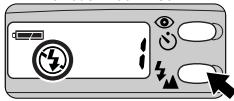
natural_image
Illustration of a device with icons for battery, eye, lock, and lightning bolt (no text or symbols)Lite Touch Zoom 130ED QD
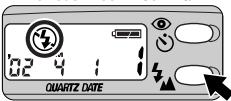
1 Press the ↓▲ button until “⚡” appears on the LCD panel.
natural_image
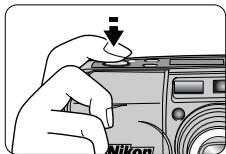
Hand holding a Nikon camera with a downward arrow indicating action (no text or symbols on the device itself)2 Compose the picture, then press the shutter release button halfway.
natural_image
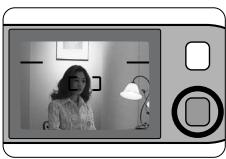
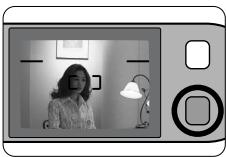
Black-and-white photo of a person in a studio setting with a lamp and framed picture (no visible text or symbols)3 Check that the green LED lights up, then shoot.
Example
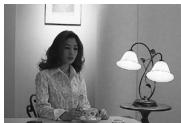
natural_image
Black-and-white photo of a woman sitting at a table with a lamp and framed picture on the wall (no visible text or symbols)To use the flash always
(Anytime Flash mode)
Use this mode to intentionally fire the flash regardless of light conditions.
Lite Touch Zoom 130ED
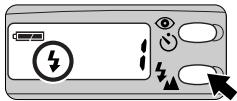
natural_image
Illustration of a device with battery, lightning bolt, eye, and switch symbols (no text or labels)Lite Touch Zoom 130ED QD
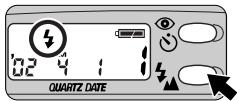
1 Press the 🔊 button until “⚡” appears on the LCD panel.
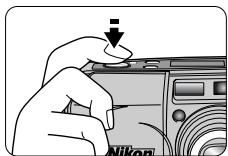
natural_image
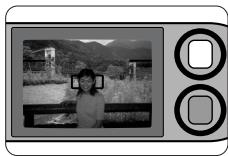
Hand pressing a button on a Nikon device (no text or symbols visible)2 Compose the picture, then press the shutter release button halfway.
natural_image
Black-and-white photo of a person in a scenic mountain landscape, no visible text or symbols3 Check that the orange and green LEDs light up, then shoot.
Example

natural_image
Black-and-white photo of a smiling woman standing beside a railing with mountains and a small building in the background (no visible text or symbols)To photograph a person in a night view
(Night Portrait mode)
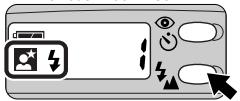
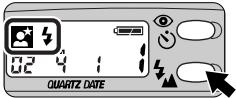
Use this mode to capture both subject and background at night or under dim light. Flash fires whenever photo is taken.

Use a tripod for the Night Portrait (Slow Sync Flash) mode
Since slow shutter speeds are usually selected in this mode, use a tripod to prevent camera shake.
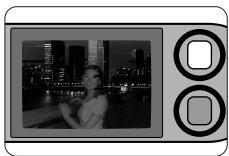
Lite Touch Zoom 130ED
Lite Touch Zoom 130ED QD
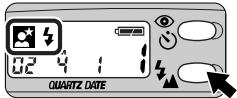
1 Press the ↓▲ button until "☐" appears on the LCD panel.
natural_image
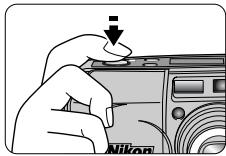
Illustration of a hand holding a Nikon camera with a downward arrow indicating action (no text or symbols present)2 Compose the picture, then press the shutter release button halfway.
natural_image
Black-and-white photo of a woman at night with city lights and waterfront (no text or symbols visible)3 Check that the orange and green LEDs light up, then shoot.
Example

natural_image
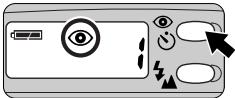
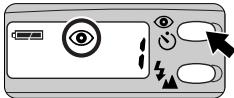
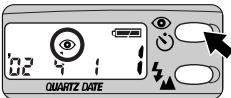
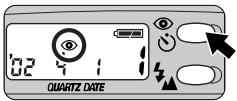
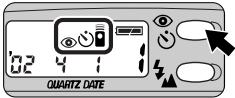
Black-and-white photo of a woman standing on a balcony overlooking a city skyline at night (no visible text or symbols)Select the mode by pressing 📄 button, for the red-eye reduction or self-timer/remote control.
Lite Touch Zoom 130ED
natural_image
Illustration of a remote control panel with icons for eye, lock, and signal buttons (no text or symbols)Select the mode by pressing the 📄 button.
Lite Touch Zoom 130ED QD
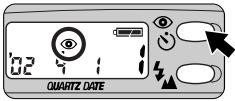
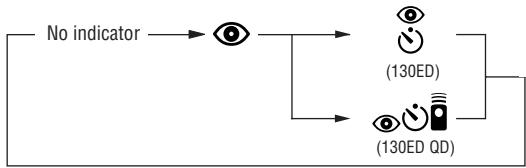
Each time you press the ⏻ button, the indicator changes as follows:
flowchart
graph LR
    A["No indicator"] --> B["Eye"]
    B --> C["(130ED)"]
    B --> D["(130ED QD)"]
| Indicator | Explanation |
| No indicator | Red-eye Reduction mode canceledTo cancel Red-eye Reduction mode. |
| (Y4TD) | Red-eye Reduction mode (p. 35)To reduce the “Red-eye” effect. |
| (cose)(130ED)(case)(130ED QD) | Self-Timer mode (p. 38)/Remote Control mode (Lite Touch Zoom 130ED QD only) (p. 39)For self-timer or remote control operation.Note that Red-eye Reduction is automatically set when the flash is used. |
To reduce the "Red-eye" effect
(Red-eye Reduction mode)
In flash photographs, the subject's eyes may sometimes appear bright red. To reduce this “red-eye” effect, use this mode.

About Red-eye Reduction mode
- The Red-eye Reduction lamp lights up approx. 1sec. before the flash fires. Be careful not to move the camera or let the subject move until the shutter is released.
- This mode is not recommended in shooting situations where shutter release is your top priority.
Lite Touch Zoom 130ED
natural_image
Illustration of a remote control panel with icons for eye, lock, and signal buttons (no text or symbols)Lite Touch Zoom 130ED QD
natural_image
Illustration of a hand pressing a Nikon lens on a camera (no text or symbols)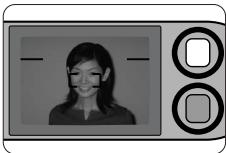
natural_image
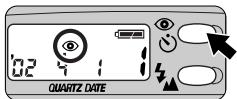
Generic camera icon showing a smiling woman's face with no text or symbols1 Press the 📷 button until “💡” appears on the LCD panel.
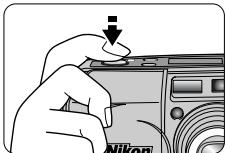
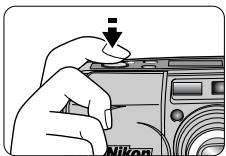
2 Compose the picture, then press the shutter release button halfway.
3 Check that the orange and green LEDs light up, then shoot.

The Red-eye Reduction mode is not automatically canceled by turning the power off. To cancel the Red-eye Reduction mode, press the button until “💡” disappears from the LCD panel.
Close-up photography
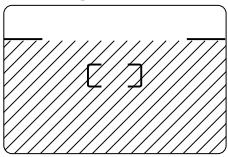
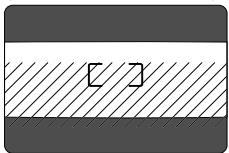
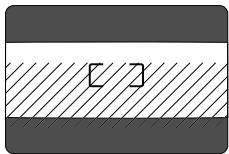
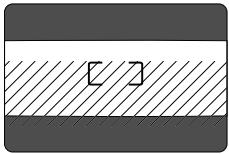
Use the parallax compensation marks when the camera-to-subject distance is shorter than 1 meter.

Minimum camera-to-subject distance is approx. 0.75m, or approx, 0.8m in Telephoto shooting
If you wish to shoot a subject such as a flower as large as possible in a picture, you can get up to as close as approx. 0.75m in Wide-angle setting, or approx, 0.8m in Telephoto setting from the subject. By setting the Zoom button to the (telephoto) position, a larger image can be obtained.
Regular mode
natural_image
Simple line drawing of a container with two rectangular cutouts and diagonal hatching (no text or symbols)Panorama mode
(Lite Touch Zoom 130ED QD only)
natural_image
Pure diagram of a layered structure with diagonal hatching and a central rectangular cutout (no text or symbols)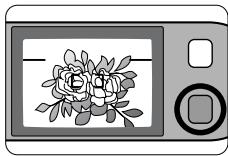
natural_image
Illustration of a digital camera with a floral display screen (no text or symbols)1 Compose the picture within the parallax compensation marks, then press the shutter release button halfway.
- The shaded area (marked with ⏻) in the left illustrations is included in the picture.
2 Check that the green LED lights up, then shoot.

If the subject is closer than approx. 0.75m in Wide-angle setting or 0.8m in Telephoto setting, the green LED slowly blinks as a warning. Move away from the subject until the green LED lights up.
Shooting a distant view or landscape through a window (Infinity Focus mode)
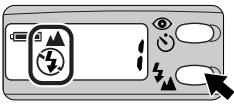
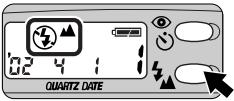
Use Infinity Focus mode to shoot a distant view more sharply, or a landscape through a window.
Lite Touch Zoom 130ED
natural_image
Illustration of a device with icons for navigation, eye, and control buttons (no text or symbols)Lite Touch Zoom 130ED QD
1 Press the 🎨▲ button until “💡▲” appears on the LCD panel.
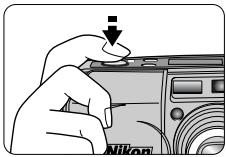
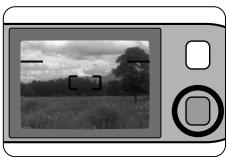
2 Compose the picture, then press the shutter release button halfway.
natural_image
Black-and-white photo of a rural landscape with trees and fields, no visible text or symbols3 Check that the green LED lights up, then shoot.

Flash is automatically canceled in this mode.
Using the self-timer
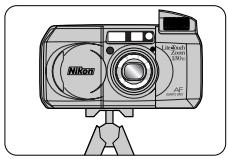
Use the self-timer when you want to be in the picture.
natural_image
Illustration of a Nikon digital camera with attached screen and tripod base (no text or symbols)Lite Touch Zoom 130ED
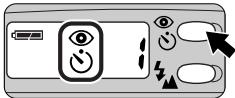
natural_image
Illustration of a remote control panel with icons for battery, power button, and buttons (no text or symbols)Lite Touch Zoom 130ED QD
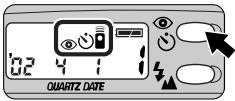
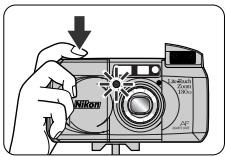
1 Use a tripod or place the camera on a stable flat surface.
2 Press the 📋 button until “💡” or “💡💡” appears on the LCD panel.
3 Compose the picture, and press the shutter release button.
- Focus and exposure are achieved by pressing the shutter release button halfway.
- When the shutter release button is pressed all the way down, the self-timer lamp blinks for approx. 8 seconds, then lights up for 2 seconds before the shutter is released.
- After the shot, self-timer mode is canceled.

Self-timer mode is automatically canceled if the camera is not operated for more than approx. 2 minutes or when the slide cover is closed.
Using the remote control (optional)
(Lite Touch Zoom 130ED QD only)
Use the optional remote control to release the camera's shutter from a distance.

When you use the remote control for the first time, pull out the transparent insulation sheet from the remote control.
Lite Touch Zoom 130ED QD
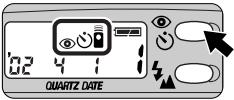
1 Press the 📋 button until “💡” appears on the LCD panel.
- Use a tripod or place the camera on a stable flat surface.

The controllable distance of the remote control is within approx. 5m while facing the camera. If the camera-to-subject distance is more than 5m away, use the self-timer.

Remote Control mode will be automatically canceled if the camera is not operated for more than approx. 3 minutes or when the slide cover is closed.
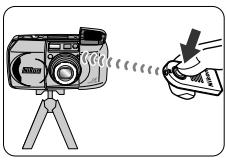
natural_image
Illustration of a digital camera mounted on a tripod with sound waves, next to a hand holding a credit card (no text or symbols present)2 Compose the picture, aim the remote control at the camera, and press the transmission button on the remote control.
- The self-timer lamp lights up for approx. 2 seconds before the shutter is released.
- Within 3 minutes after taking the last shot using the remote control, you can still continue to shoot by remote control.

Remote control operation cannot be performed when the camera has extreme backlighting. Change the camera position in this case.

The life of the battery in the remote control is approx. 5 years. If the battery is exhausted, the shutter may not be released with the remote control.
Replace the battery inside the remote control with a new one. (p. 40)
Replacing the remote control battery
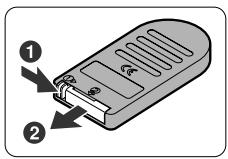
1 While keeping the battery holder release lever pressed as the arrow on the remote control indicates to release the lock ①, pull out the battery holder from the remote control ②.
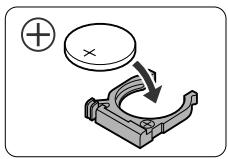
2 Replace the battery.
- Use one 3 V lithium (CR2025 type) battery.
- Insert the battery with ⭕ polarity side facing up into the battery holder.
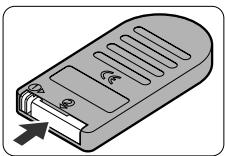
natural_image
Illustration of a remote control device with slots and an arrow pointing to its side (no text or symbols)3 Insert the battery holder into the remote control until it clicks closed.
Warning:
Keep the batteries out of the reach of children. If a battery is swallowed, consult a doctor immediately.
Correcting the date and time
(Lite Touch Zoom 130ED QD only)
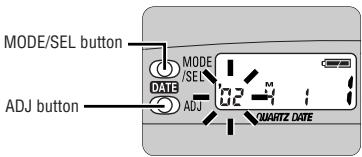
1 Press and hold the MODE/SEL button for more than 2 seconds.
- When the date/time display format is Year/Month/Day, Month/Day/Year, or Day/Month/Year, “Year” indicator blinks first. For Day/Hour/Minute display, “Hour” indicator blinks first.
- The date/time correction can be performed with the camera either on or off. When the camera is on, the data will be immediately registered if the slide cover is closed, or the Mid-roll Rewind button or a Zoom button is pressed while the setting is in progress.
2 Press the ADJ button to set the blinking digit.
- Each time you press the ADJ button, the number advances by one.
- Holding the ADJ button pressed for more than 2 seconds advances the number quickly.
3 When the blinking indicator is correctly set, press the MODE/SEL button again so that the next indicator blinks.
- Repeat steps 2 and 3 to set all the digits. When the year/month/date or date/hour/minute have been adjusted, press the MODE/SEL button to finish the adjustment procedure. If the year/month/date or date/hour/minute are all displayed correctly, adjustments has been completed.

When the battery is replaced
●The LCD panel shows "00 0 00."
● The date/time is not imprinted in pictures taken while “00 0 00” is indicated. Set the date and time following the above procedure.
Troubleshooting
Track down the cause of trouble using the following chart. It may save you a trip to your nearest Nikon service center.
* When the battery is replaced or re-installed, the date and time you set are cleared. Reset them. (p. 41)
| Problem | Check points and solution | Ref. page | |
| Shutter | The shutter cannot be released. | ● The slide cover is not completely open.→Open the slide cover all the way until it clicks to turn the camera on.● The orange LED blinks.→The flash is charging. Release the shutter after the orange LED lights up.● “ ” lights up on the LCD panel.→A rewound roll of film is inside. Replace it with a new roll.● No indicator on the LCD panel.→The battery is exhausted. Replace it with a new one.*● All indicators on the LCD panel blink.→The camera has detected a malfunction. Once open the slide cover and close it again, then the power is turned on. If the camera still does not work properly, remove the battery from the camera and confirm the indicators turns off, then Install the battery in place again.* | 1513,2916,172514,1514,15 |
| Flash | The flash does not fire. | ● The orange LED blinks.→The flash is charging. Release the shutter after the orange LED lights up.● “ + ” lights up on the LCD panel.→The flash does not fire when the subject is bright enough. To fire the flash, set the camera to the Anytime Flash mode.● No indicator, or the “ - ” blinks or lights on the LCD panel.→Battery power is low or the battery is exhausted. Replace the battery with a new one.*● The orange LED blinks quickly.→Check that the flash unit is not pressed down. Do not touch the flash unit. | 13,2930,3214,1513,29 |
| Focus | The subject appears out of focus in the print. | ● Camera shake.→Gently press the Shutter Release button, or use a tripod or place the camera on a stable flat surface.● Something in front or behind the subject is in focus.→Be sure to center the autofocus frame marks on the subject before releasing the shutter. When correct focus cannot be easily achieved, use the focus lock. | 20,313322,2627 |
| LCD panel | No indicator appears even when the camera is turned on. | ● The battery is installed the wrong way round.→ Insert the battery with the⊕and⊖ends positioned as marked inside the battery chamber.*● No battery or dead battery.→ Install a new battery.* | 1414,15 |
| The numeral “i” does not appear even when film is loaded. | ● “E” blinks or lights up.→ Remove the film and load it again. | 16,17 | |
| Remote control (optional) | The shutter cannot be released using the remote control. | ● You are out of the remote control working range.→ Operate the remote control in a range within 5m facing the camera.● Two or more minutes have elapsed since you set the camera to Remote Control mode.→ Set the camera to the Remote Control mode again.● The remote control is operated in backlit.→ Change the position of the remote control.● The service life of the battery in the remote control has lapsed (5 years).→ Install a new battery. | 39393940 |
A characteristic of electronic cameras
In certain cases, due to static electricity, the Lite Touch Zoom 130ED/Lite Touch Zoom 130ED QD microcomputer may turn the camera off, even with fresh, properly installed batteries. For the same reason, the film may not advance properly. In each of these cases, to resume operation, simply turn the power off, then turn it on again. Or, remove and reinstall the batteries.
When the battery is removed, the date/time you set are cleared. Reset them after reinstalling the battery. (p. 41)
Specifications
Type of camera
35mm autofocus lens-shutter camera with Nikon zoom lens
Usable film
DX-coded 35mm film in film cartridge
Picture format
Normal: 24 × 36mm
Panorama (Lite Touch Zoom 130ED QD only): 13.3 × 36mm
Lens
38mm f/5.3 – 130mm f/10.5, 7 elements in 5 groups (ED lens and aspheric lens are used)
Shutter
Programmed electronic type; also serves as diaphragm blades; Shutter speed: 2 to 1/500 seconds
Viewfinder
Real-image viewfinder; frame coverage: approx. over 80 % in regular-size frame; approx. 0.38 × magnification at 38mm, approx. 1.05 × at 130mm; Diopter adjustment: -3 m^-1 +1 m^-1 , Antifog viewfinder
Viewfinder information
Image size frame with parallax compensation marks; Panorama-format frame marks (Lite Touch Zoom 130ED QD only); Autofocus frame marks: Green LED (in-focus indicator) – Lights up: subject focused, Blinks slowly (at 2 Hz): subject is too close to achieve correct focus, Blinks quickly (at 8 Hz): subject is difficult to focus; Orange LED (flash-ready light) – Lights up: flash ready, Blinks slowly (at 4 Hz): flash being charged, Blinks quickly (at 8 Hz): the popped-up flash unit is being pressed down
Focusing
Multi-Area Passive Autofocus system; Activeated by lightly pressing shutter release button; Distance range from approx. 0.75m to infinity at 38 mm, approx. 0.8m to infinity at 130mm
Focus lock
Focus is locked as long as the shutter release button lightly pressed
Exposure control
Electronically controlled program AE:
auto exposure range (ISO100): EV 6 – 16 at 38mm or EV 6 – 16 at 130mm, (ISO 400): EV 8 – 17 at 38mm, EV 8 – 18 at 130mm
Film speed setting
ISO 25, 50, 100, 200, 400, 800, 1600, and 3200 film automatically set; With non-DX-coded film, automatically set to ISO 25
Film loading
Film automatically advances to the first frame upon completion of film loading; With a film cartridge confirmation window
Frame counter
Shown in the LCD panel; Additive type; Counts back during film rewind
Self-timer
Electronically controlled; Activated by depressing the shutter release button; Self-timer lamp blinks and lights up to show when ready; Timer duration 10 seconds; Cancellable
Film advance
Film automatically advances by one frame after each shot; Auto rewind at the end of film roll; Mid-roll rewind function available
Remote control (optional) (Lite Touch Zoom 130ED QD only)
Infrared wireless remote control; 2 sec. delay shutter release; Effective range is within approx. 5m straight in front of the camera; One 3 V lithium (CR2025) battery. Battery will last for approx. 5 years; Dimensions (W × H × D): approx. 60 × 28 × 7mm; Weight (including battery): approx. 10 g
Built-in flash
Four flash modes available: Auto Flash, Flash Cancel, Anytime Flash, and Night Portrait (Slow Sync Flash); Flash automatically fires when there is not enough light or subject is backlit; Flash shooting range (ISO 100): approx. 0.75 – 3.8m at 38mm, approx. 0.8 – 1.8m at 130mm, (ISO 400): approx. 0.75 – 7.6m at 38mm, approx. 0.8 – 3.6m at 130mm; Shutter release button is locked during flash charging; Recycling time approx. 5 sec.
Red-eye Reduction mode
Red-eye Reduction lamp lights up for approx. 1 sec. before flash fires.
Battery life
Approx. 10 rolls of 24-exposure film when flash is used for half the exposures
LCD panel (Power is on)
Frame counter, Flash mode, Red-eye Reduction, Self-timer, Remote Control (Lite Touch Zoom 130ED QD only), Infinity Focus mode, Low battery power, Time/Date (Lite Touch Zoom 130ED QD only)
Power source
One 3 V lithium battery (CR123A type or DL123A)
Date imprint function (Lite Touch Zoom 130ED QD only)
Functions with panorama-format pictures; Auto film speed setting with DX codes (ISO 25 – 3200); Imprinted date include year, month, day, hour, (24-hour cycle with no AM/PM) and minute with five choices; Year/Month/Day, Month/Day/Year, Day/Month/Year, Day/Hour/Minute, and no-imprint; Leap year adjustment until 2040; Power source is the same as the camera body; Built-in clock with timing accuracy within ± 90 seconds a month
Dimensions (W × H × D)
Approx. 116.5 × 60 × 42mm
Weight (without battery)
Lite Touch Zoom 130ED: Approx. 188 g
Lite Touch Zoom 130ED QD: Approx. 190 g
- Specifications apply when a fresh battery is used at normal temperature (20 °C).
- Specifications and design are subject to change without notice.
Sicherheitshinweise
natural_image
Line drawing of a trapezoidal rope with attached clips (no text or symbols)Trageschlaufe
Sonderzubehör
natural_image
Diagram showing a device with a labeled component and a belt buckle (no text or symbols present)natural_image
Technical illustration of a printer holder with paper slots and control panel (no text or symbols)natural_image
Hand holding a Nikon computer mouse with a downward arrow indicator (no text or symbols on the mouse itself)natural_image
Black-and-white photo of a smiling person holding a camera, with no visible text or symbols.natural_image
Hand pressing a button on a laptop keyboard (no text or symbols visible)natural_image
Illustration of hands using a tool to connect cable or wires into a device (no text or symbols visible)natural_image
Illustration of hands holding a tool with a triangular pointer (no text or symbols)Normaler Sucher
Panoramasucher (nur Lite Touch Zoom 130ED QD)
natural_image
Hand holding a camera module with an arrow indicating rotation (no text or symbols)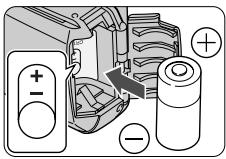
natural_image
Line drawing of a Nikon camera module with an arrow indicating rotation (no text or symbols present)natural_image
Mechanical assembly diagram showing a rotating component with a curved arrow indicating motion (no text or symbols)natural_image
Close-up of a mechanical component with a paperclip inserted, showing internal structure (no text or symbols visible)natural_image
Illustration of a hand inserting a camera module into a device (no text or symbols visible)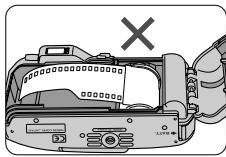
natural_image
Diagram of a device with a cross mark and warning symbol, no readable text or labels presentLite Touch Zoom 130ED
natural_image
Simple line drawing of a battery with two buttons and a battery symbol (no text or labels)Lite Touch Zoom 130ED QD
natural_image
Illustration of a flowering rose with leaves and stem (no text or symbols)natural_image
Illustration of a flowering plant with leaves and blossoms, no text or symbols presentnatural_image
Line drawing of a person holding a camera, eyes visible (no text or symbols)natural_image
Illustration of a person holding a camera (no text or symbols visible)natural_image
Simple geometric diagram with a gray rectangle centered on a horizontal line (no text or symbols)Zur Hälfte drücken
natural_image
Hand pressing a button with a downward arrow (no text or symbols)natural_image
Hand pressing a button with a black arrow indicating downward motion (no text or symbols)natural_image
Black-and-white landscape photo showing a suspension bridge over hills, with an arrow pointing right (no text or symbols)Normaler Modus
natural_image
Black-and-white exterior view of a suspension bridge over water with mountainous background (no visible text or symbols)Panoramamodus
natural_image
Black-and-white photo of a smiling woman wearing glasses, outdoors with trees in background (no text or symbols)natural_image
Hand pressing a button on a Nikon device (no text or symbols visible)natural_image
Illustration of a gray floppy disk with a black circular button and two square buttons (no text or symbols)natural_image
Hand holding a Nikon device with a downward arrow indicating action (no text or symbols present)natural_image
Black-and-white photo of a person standing on a curved bench beside flowerbeds and garden (no visible text or symbols)natural_image
Black-and-white photo of a woman standing outdoors in a grassy field with white flowers (no text or symbols visible)natural_image
Pure electrical circuit lines without any symbolsLite Touch Zoom 130ED QD
natural_image
Diagram of a device interior showing a tray with a lid and a handle, no text or symbols presentnatural_image
Illustration of two people facing a tree with a leaf, no text or symbols presentnatural_image
Black-and-white photo of a person outdoors in a field, no visible text or symbolsnatural_image
Black-and-white photo of a child outdoors near a building, no visible text or symbolsnatural_image
Black-and-white photo of a girl tending to plants in a field with a distant structure (no visible text or symbols)natural_image
Simple line drawing of a landscape with trees and a valley, no text or symbols presentnatural_image
Architectural line drawing of a multi-story building with windows and solar panels (no text or symbols)natural_image
Illustration of a cat and a pig in a cage-like structure (no text or symbols)natural_image
Illustration of a smiling woman standing beside a window with a sun icon (no text or symbols)Aufnahmen mit Blitz
natural_image
Illustration of a remote control panel with battery, lightning bolt, eye, and switch symbols (no text or labels)natural_image
Simple icon of a computer with a scroll wheel and two buttons (no text or symbols)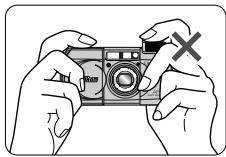
natural_image
Illustration of two hands holding a camera with a red X mark on the camera (no text or symbols present)
natural_image
Simple diagram of a battery with two terminals and a battery symbol (no text or labels)Lite Touch Zoom 130ED QD
natural_image
Hand pressing a button on a Nikon camera module (no text or symbols visible)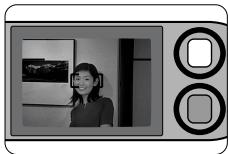
natural_image
Black-and-white photo of a person in front of a wall with a camera and screen (no visible text or symbols)natural_image
Black-and-white photo of a smiling woman standing in front of a wall with a framed landscape image (no visible text or symbols)
natural_image
Illustration of a remote control panel with icons for battery, eye, lightning bolt, and mouse (no text or symbols)Lite Touch Zoom 130ED QD
natural_image
Black-and-white photo of a person in a studio setting with lamp and framed picture frame (no visible text or symbols)natural_image
Black-and-white photo of a woman sitting at a desk with a lamp and framed picture on the wall (no visible text or symbols)natural_image
Illustration of a remote control panel with battery, lightning bolt, eye icons, and navigation arrows (no text or symbols)Lite Touch Zoom 130ED QD
natural_image
Hand holding a Nikon camera module with a downward arrow indicator (no text or symbols on the device itself)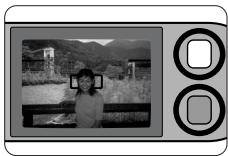
natural_image
Black-and-white photo of a person taking a selfie with mountainous background (no text or symbols visible)natural_image
Black-and-white photo of a smiling woman standing on a wooden railing with a mountainous background and a small building in the background (no visible text or symbols)natural_image
Illustration of a device interface with battery, camera, eye, and lightning bolt symbols (no text or labels)Lite Touch Zoom 130ED QD
natural_image
Hand pressing a button on a Nikon device (no text or symbols visible)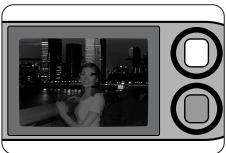
natural_image
Black-and-white photo of a woman sitting at night with city skyline in background (no visible text or symbols)natural_image
Black-and-white photo of a woman posing on a riverside promenade at night with illuminated city skyline in background (no visible text or symbols)natural_image
Illustration of a remote control panel with icons for eye, lock, and buttons (no text or symbols)natural_image
Illustration of a remote control panel with icons for battery, eye, and buttons (no text or symbols)Lite Touch Zoom 130ED QD
natural_image
Hand pressing a button on a laptop (no text or symbols visible)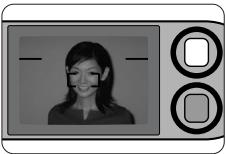
natural_image
Generic camera icon showing a smiling woman's face with two circular buttons (no text or symbols)natural_image
Simple line drawing of a container with two rectangular cutouts, no text or symbols presentPanoramamodus
(nur Lite Touch Zoom 130ED QD)
natural_image
Pure diagram of a rectangular object with a diagonal hatching pattern, no text or symbols present.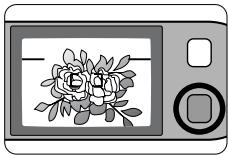
natural_image
Illustration of a digital camera with a rose display (no text or symbols)natural_image
Illustration of a device with icons for navigation, eye, and lightning bolt (no text or symbols)Lite Touch Zoom 130ED QD
natural_image
Hand holding a Nikon camera with a downward arrow indicator (no text or symbols on the device itself)natural_image
Black-and-white photo of a rural landscape with trees and fields, no visible text or symbolsnatural_image
Illustration of a Nikon digital camera with attached screen and tripod stand (no text or symbols)natural_image
Illustration of a digital camera mounted on a tripod with a hand holding a small object nearby (no text or symbols)natural_image
Illustration of a rectangular electronic device with slots and a button, showing internal components and an arrow indicating direction (no text or symbols)natural_image
Line drawing of a rope tied with a small object, labeled 'Dragon' in the top right corner (no other text or symbols)Accessoires en option
natural_image
Diagram showing a car's seatbelt switch and its connector (no text or symbols present)natural_image
Diagram of a printer internal structure with paper feed and paper strip (no text or symbols)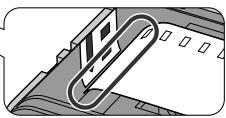
natural_image
Pure mechanical component diagram without any text, numbers, or symbolsMode normal
natural_image
Illustration of a hand pressing down on a Nikon camera module (no text or symbols visible)natural_image
Black-and-white photo of a smiling person holding a camera, displayed on a digital camera (no text or symbols visible)natural_image
Illustration of a hand pressing down on a device component with a downward arrow (no text or symbols)natural_image
Illustration of a hand using scissors to adjust cable or wire inside a device (no text or symbols visible)natural_image
Illustration of a hand holding a tool with a pen, no text or symbols presentViseur normal
natural_image
Close-up of a hand holding a camera module with a scroll arrow indicating rotation (no text or symbols)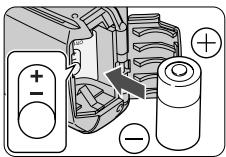
natural_image
Line drawing of a Nikon camera with an arrow indicating the camera's left side (no text or symbols present)natural_image
Mechanical assembly diagram showing a piston and crankshaft mechanism (no text or labels)natural_image
Close-up of a mechanical component with a paperclip inserted, showing internal structure (no text or symbols visible)natural_image
Illustration of a hand inserting a camera module into a device (no text or symbols visible)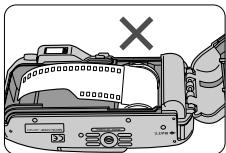
natural_image
Diagram of a device with a cross mark and warning symbol, no readable text or labels presentLite Touch Zoom 130ED
natural_image
Simple line drawing of a battery with two buttons and a battery symbol (no text or labels)Lite Touch Zoom 130ED QD
natural_image
Illustration of a flowering rose with leaves and stem, no text or symbols presentnatural_image
Illustration of a flowering plant with white blossoms and leaves, no text or symbols presentnatural_image
Line drawing of a person holding a camera, eyes visible (no text or symbols)natural_image
Illustration of a person holding a camera, no text or symbols presentnatural_image
Simple geometric diagram with a gray rectangle centered on a horizontal line (no text or symbols)A moitié enfoncé
natural_image
Hand pressing a button with a downward arrow (no text or symbols)natural_image
Hand pressing a button with a black arrow indicating downward motion (no text or symbols)natural_image
Black-and-white exterior view of a suspension bridge over a river with mountains in the background (no visible text or symbols)Mode normal

natural_image
Black-and-white exterior view of a suspension bridge over water with mountainous background (no visible text or symbols)Mode panoramique
natural_image
Black-and-white photo of a smiling woman wearing glasses, outdoors with trees in background (no text or symbols)natural_image
Hand holding a Nikon camera with a downward arrow indicating action (no text or symbols on the device itself)natural_image
Illustration of a gray floppy disk with a black circular button (no text or symbols)38mm : approx. 0,75m
130mm : approx. 0,8m
natural_image
Hand holding a Nikon device with a downward arrow indicating action (no text or symbols on device)natural_image
Black-and-white photo of a person standing on a curved bench in a landscaped park with flowerbeds and a pavilion (no visible text or symbols)natural_image
Black-and-white photo of a woman standing outdoors among white flowers, no visible text or symbols
natural_image
Pure electrical circuit lines without any symbolsLite Touch Zoom 130ED QD
natural_image
Diagram of a device interior showing a tray with a lid and a handle, no text or symbols presentnatural_image
Illustration of two people standing beside a tree with a leaf, no text or symbols presentnatural_image
Black-and-white photo of a person outdoors on a grassy field, displayed within a camera case (no visible text or symbols)natural_image
Black-and-white photo of a child playing outdoors with grass and a building in the background (no text or symbols visible)natural_image
Black-and-white photo of a woman standing in a field with plants and a distant structure, no visible text or symbols.natural_image
Simple line drawing of a landscape with trees and a valley, no text or symbols presentnatural_image
Illustration of a modern multi-story building with windows and solar panels, surrounded by trees (no text or symbols)natural_image
Illustration of a cage with animals inside (no text or symbols)natural_image
Illustration of a person wearing VR goggles, standing beside a window with a sun icon (no text or symbols)natural_image
Illustration of a remote control panel with icons for battery, eye, and lightning bolt (no text or symbols)natural_image
Simple grayscale icon of a computer with a scroll wheel and two buttons (no text or symbols)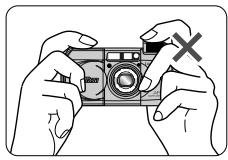
natural_image
Illustration of hands holding a camera with a red X mark indicating cancellation (no text or symbols present)
natural_image
Simple diagram of a battery with two terminals and a battery symbol (no text or labels)Lite Touch Zoom 130ED QD
natural_image
Hand pressing a button on a Nikon camera module (no text or symbols visible)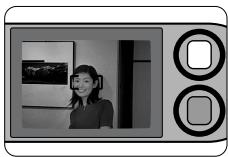
natural_image
Black-and-white photo of a person in front of a wall with a camera and screen (no visible text or symbols)natural_image
Black-and-white photo of a smiling woman standing in front of a wall with a landscape painting (no visible text or symbols)
natural_image
Illustration of a device with battery, eye icons, and lightning bolt (no text or symbols)Lite Touch Zoom 130ED QD
natural_image
Black-and-white photo of a person in a studio setting with a lamp and framed artwork (no visible text or symbols)natural_image
Black-and-white photo of a woman sitting at a desk with a lamp and framed picture on the wall (no visible text or symbols)natural_image
Illustration of a device with battery, lightning bolt, eye, and switch symbols (no text or labels)Lite Touch Zoom 130ED QD
natural_image
Hand pressing a button on a Nikon device (no text or symbols visible)natural_image
Black-and-white photo of a person in a scenic mountain landscape, no visible text or symbolsnatural_image
Black-and-white photo of a woman standing by a railing with a river and distant mountains in the background (no visible text or symbols)natural_image
Illustration of a Cameroon phone interface with icons for battery, eye, and camera (no text or symbols)Lite Touch Zoom 130ED QD
natural_image
Illustration of a hand pressing down on a Nikon camera module (no text or symbols)natural_image
Black-and-white photo of a woman at night with city lights and waterfront (no visible text or symbols)natural_image
Black-and-white photo of a woman standing on a waterfront promenade at night with city skyline in the background (no visible text or symbols)natural_image
Illustration of a device control panel with eye symbols and directional arrows (no text or labels)Lite Touch Zoom 130ED QD
natural_image
Illustration of a remote control panel with icons for eye, lock, and buttons (no text or symbols)Lite Touch Zoom 130ED QD
natural_image
Illustration of a hand pressing down on a Nikon camera module (no text or symbols visible)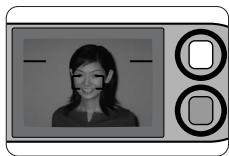
natural_image
Digital camera icon showing a smiling woman's face with editing handles (no text or symbols)natural_image
Simple line drawing of a container with two rectangular cutouts, no text or symbols present.Mode panoramique
(Lite Touch Zoom 130ED QD uniquement)
natural_image
Pure diagram of a rectangular object embedded in a striped pattern, no text or symbols presentnatural_image
Illustration of a digital camera with a floral design on screen (no text or symbols)natural_image
Illustration of a device with icons and arrows, no readable text or symbols presentLite Touch Zoom 130ED QD
natural_image
Hand pressing a button on a Nikon device (no text or symbols visible)natural_image
Black-and-white photo of a grassy field with trees and cloudy sky, no visible text or symbolsnatural_image
Line drawing of a Nikon digital camera with attached AF and Bluetooth components (no text or symbols)natural_image
Illustration of a remote control panel with icons and buttons (no text or symbols)Lite Touch Zoom 130ED QD
natural_image
Illustration of a camera on a tripod with sound waves, and a hand holding a small object (no text or symbols)2 Remplacez la pile.
natural_image
Illustration of a rectangular electronic device with slots and an arrow pointing to its side (no text or symbols)Dimensions (W × H × D)
Approx. 116,5 × 60 × 42mm
Poids (sans pile)
Lite Touch Zoom 130ED: Approx. 188 g
Lite Touch Zoom 130ED QD: Approx. 190 g